Item List
Before commencing an estimate, it is recommended to personalize your Items list by incorporating pricing details and suppliers for each item description within every Category to be used in the estimate. Additional categories and items can be added to the Items list to staisfy your estimate needs.
Access the Items List from the main menu.
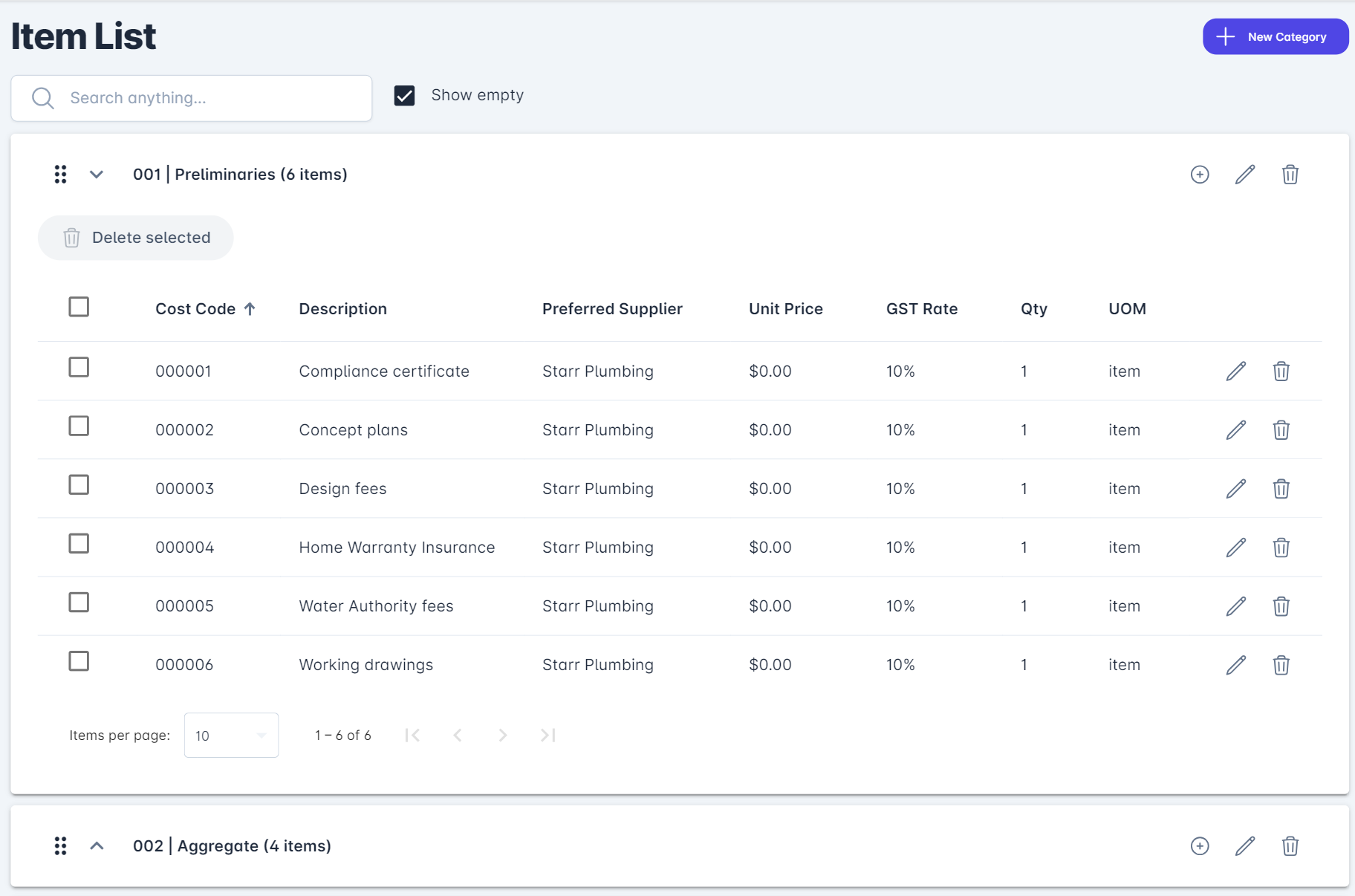
A list of Categories (in the example above Preliminaries & Aggregate are an example) and associated Items for each Category are loaded based on your selected Trade at account setup. To expand the Category, click ^ next to the Category name and a list of associated Items will appear. Click again to minimize the Category Items.
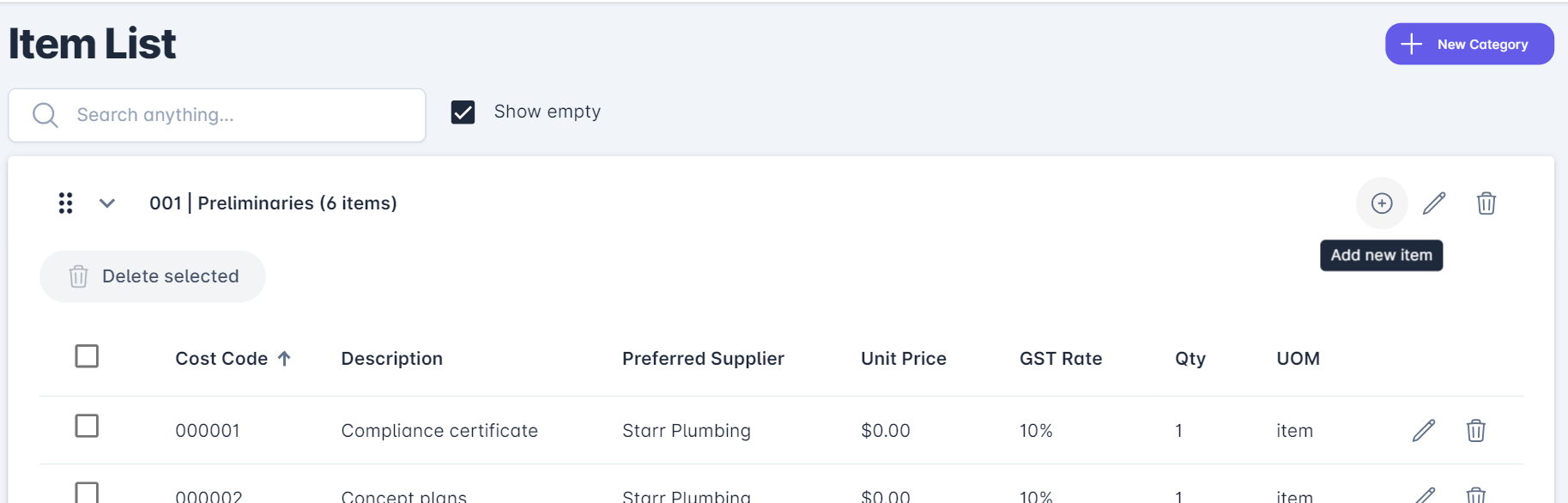
If you need to create a new Category, select the blue + New Category option at the top of the page. To Add a new Item to a Category, select the circle containing the + on the Category name line, for example, below.
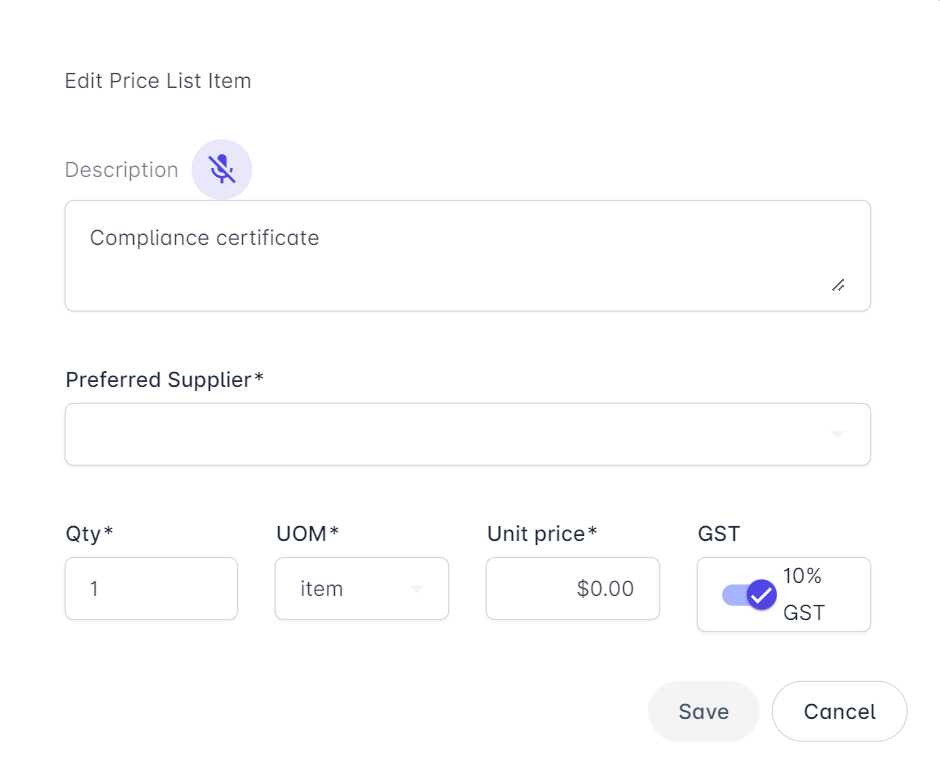
To edit an item, select the edit (pencil) icon at the end of the item row. Enter the details in the fields provided, including the Preferred Supplier from the drop down list. For item description changes or additions, you can verbally provide the description to save time by clicking on the micorphone icon.
Note that your company on-cost (e.g. 30% markup you entered during setup of Eazimate) is added to the wholesale/retail price of the Item you entered in the screen following. You can change the on-cost for any item (or the estimate total) once the draft estimate is created.
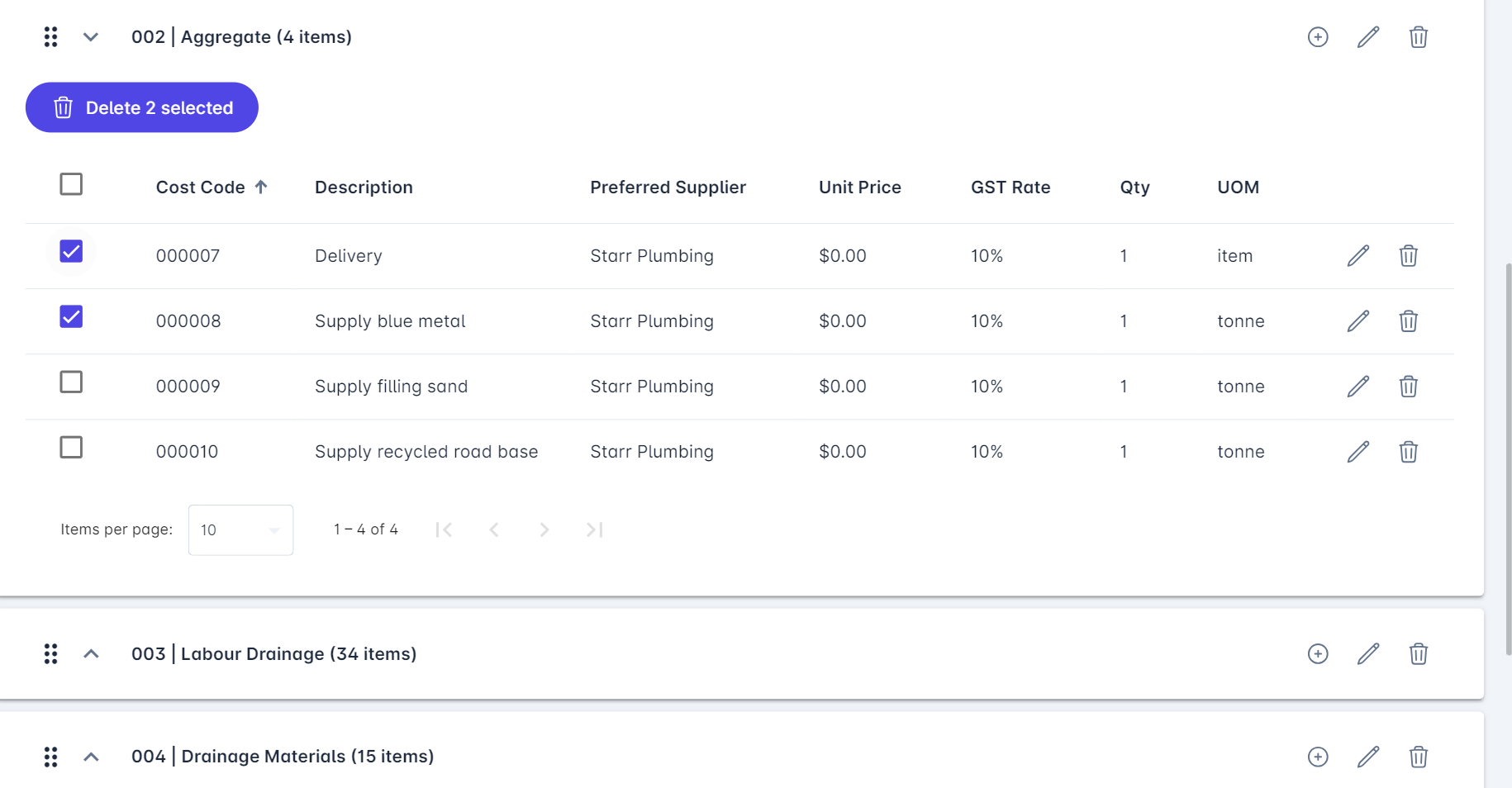
Delete Categories or Items via the trash can icons on either the Category or Items row. For multiple Item deletions at once tick each Item box and select Delete 2 selected.