Templates and Job Copy
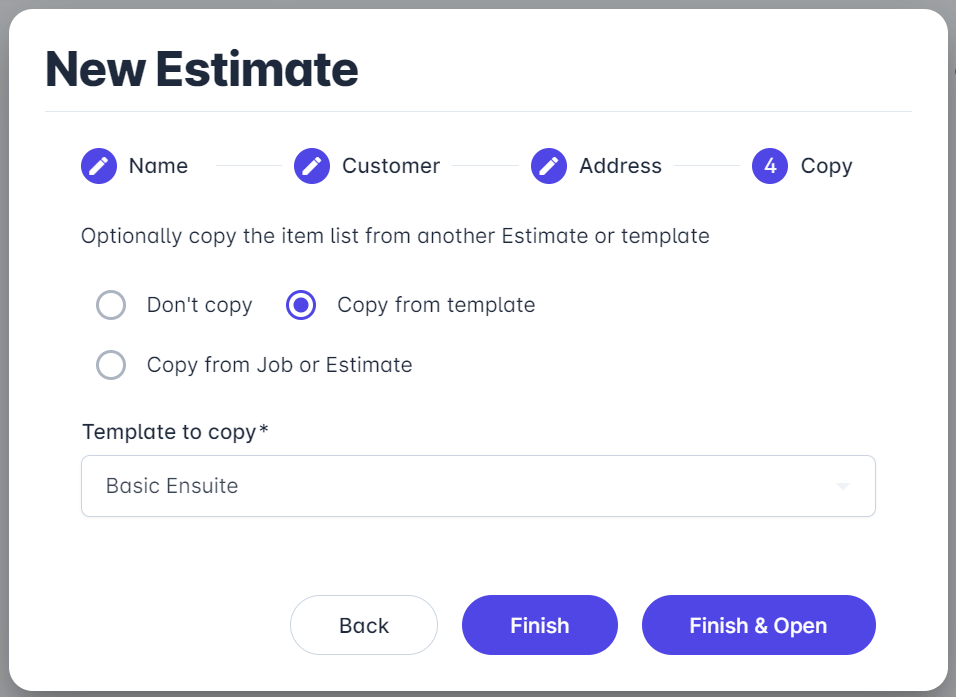
Eazimate offers 3 ways of created an Estimate. Don't copy (i.e. start from new), Copy from Template or Copy from Job or Estimate .
The last 2 options could provide significant time savings when creating Estimates.
Instead of starting a new estimate from the bottom up (Don't copy option), you have the option to use a Template (if created) containing preferred categories and items for a specific type of work e.g. you may have a template for Ensuite Bathroom, Full Bathroom with Bath or Full Bathroom with Spa. The platform allows an unlimited amount of templates.
Alternatively, you can copy from a prior Job or Estimate. For instance, you may have been asked to quote on a job similar to a job you have done in the past. In that case, chose the Copy from Job or Estimate option when promted during the Estimate setup and select the past customer job.
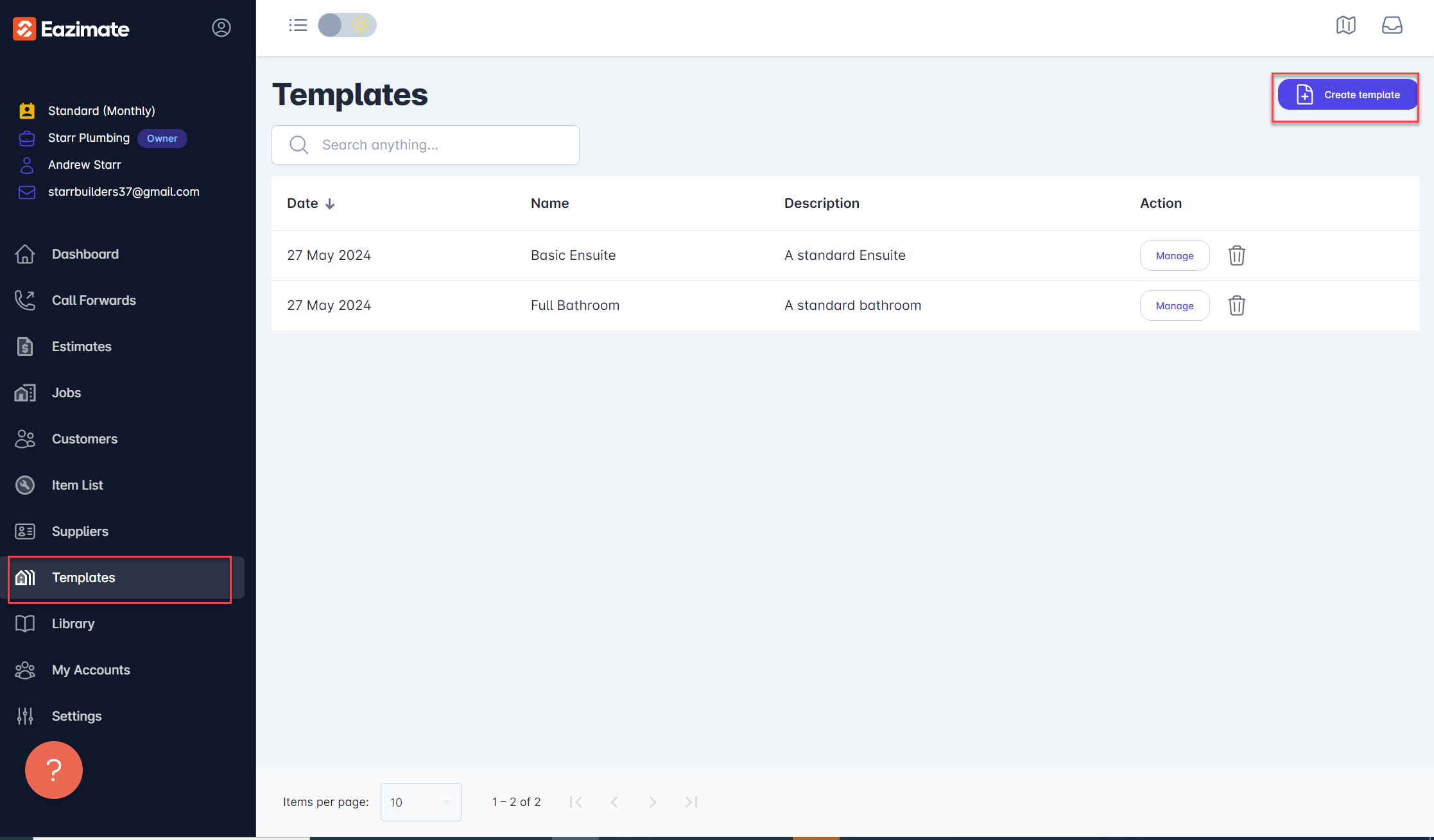
To create a new Template, access the Templates section from the main menu and select Create template located in the top right corner of the screen. Below is an example of 2 templates already setup.
In order to utilize a template for a quotation, choose Copy from Template, or Copy from Job or Estimate when configuring a New Estimate. You will be presented with a list of all your previous jobs and estimates. Simply select the job that closely resembles the estimate you are working on and make the necessary modifications accordingly.