Job Orders
After an estimate has been accepted by the customer and automatically transitions into a Job, you can proceed to generate and dispatch purchase orders to your suppliers. Alternatively, you have the option to create an order and send it at a later date if necessary. To use the Call Forward feature you need to have generated Orders.
To generate Orders select the related Job in the Jobs menu, then select Orders from the menu.
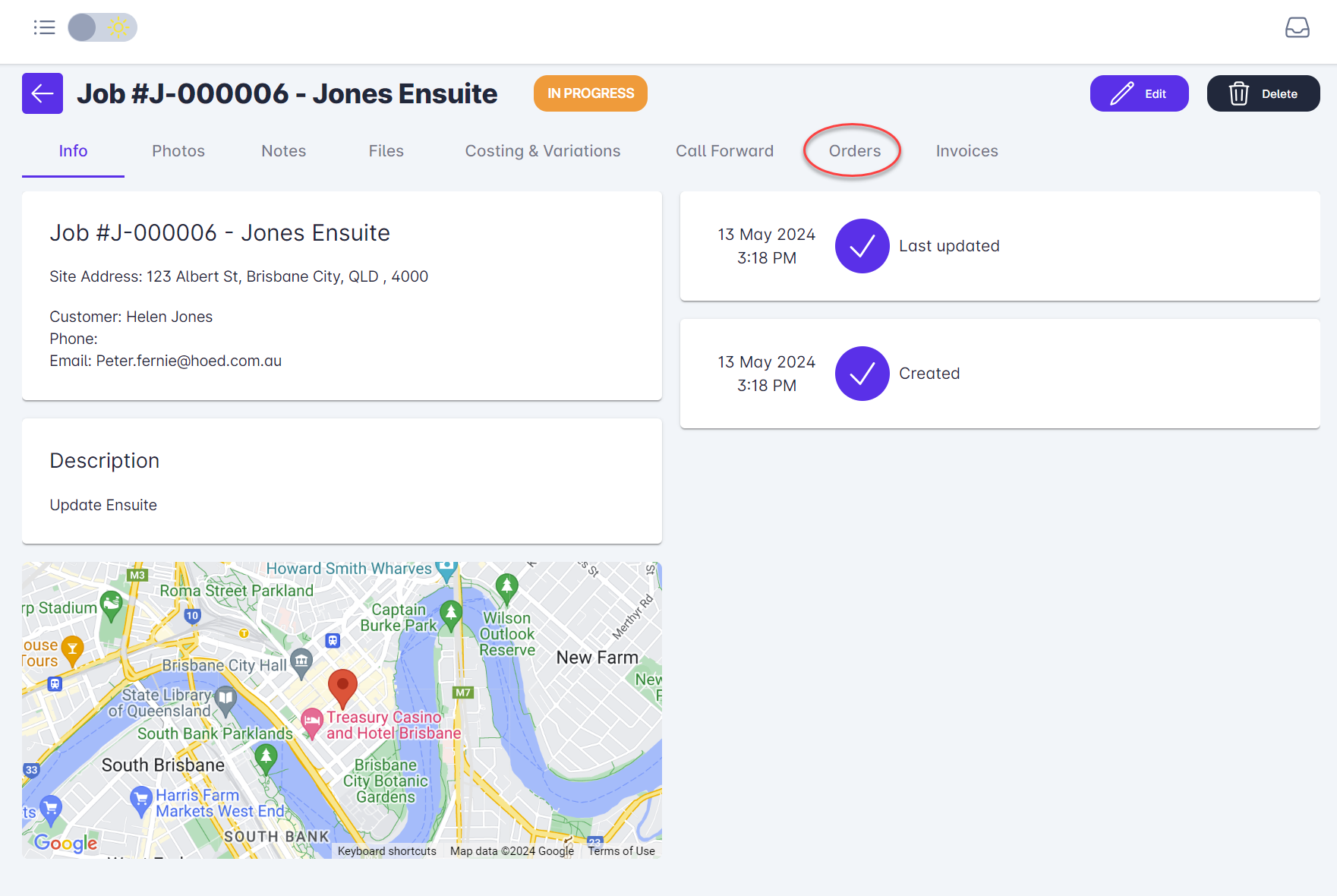
Select + Create Orders from the top right of the screen. You can also + Add Extra/Over Order if required. An Extra/Over order is typically used when the work has deviated slightly from the initially agreed scope.
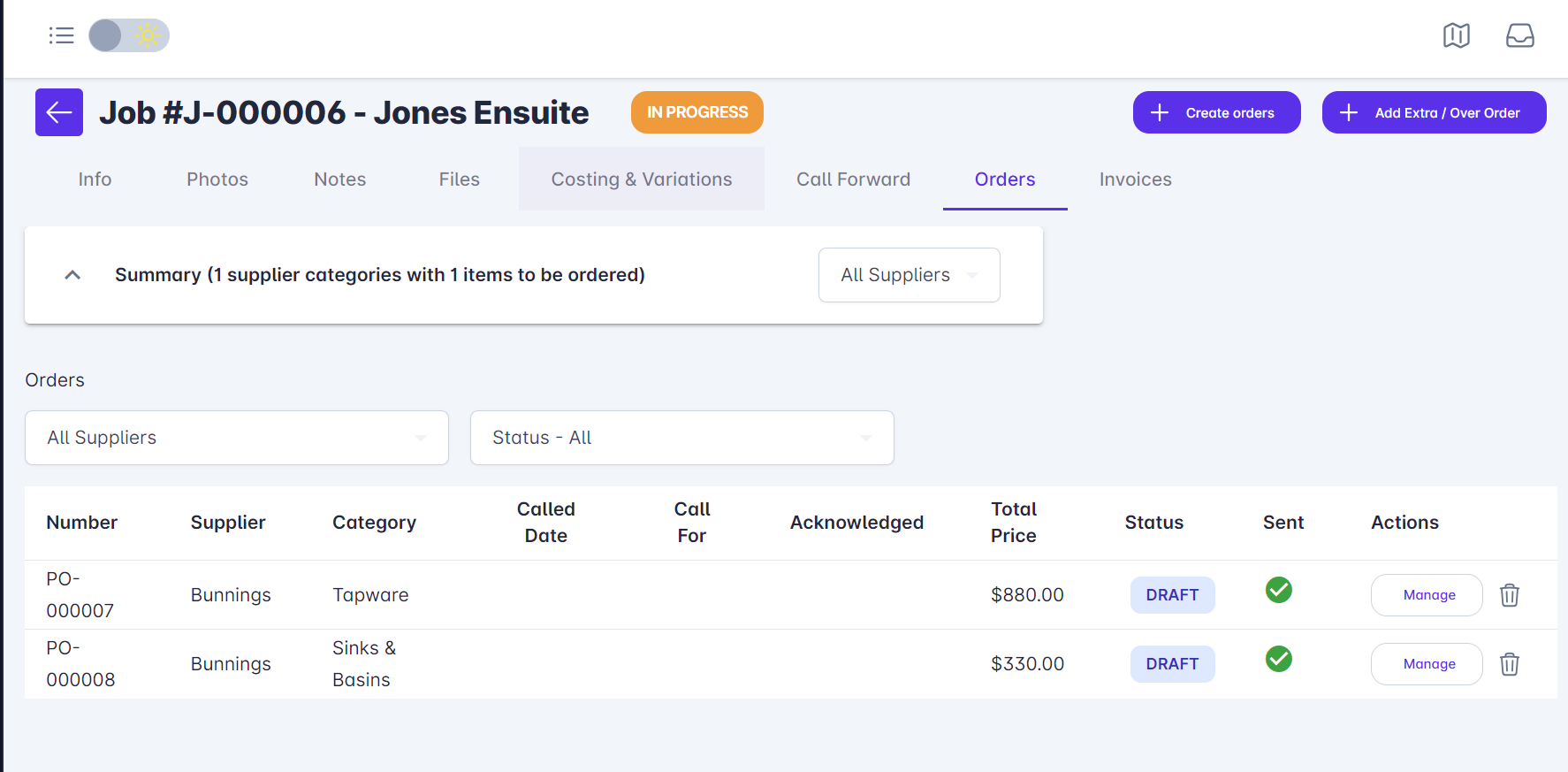
Select the items you want to order.
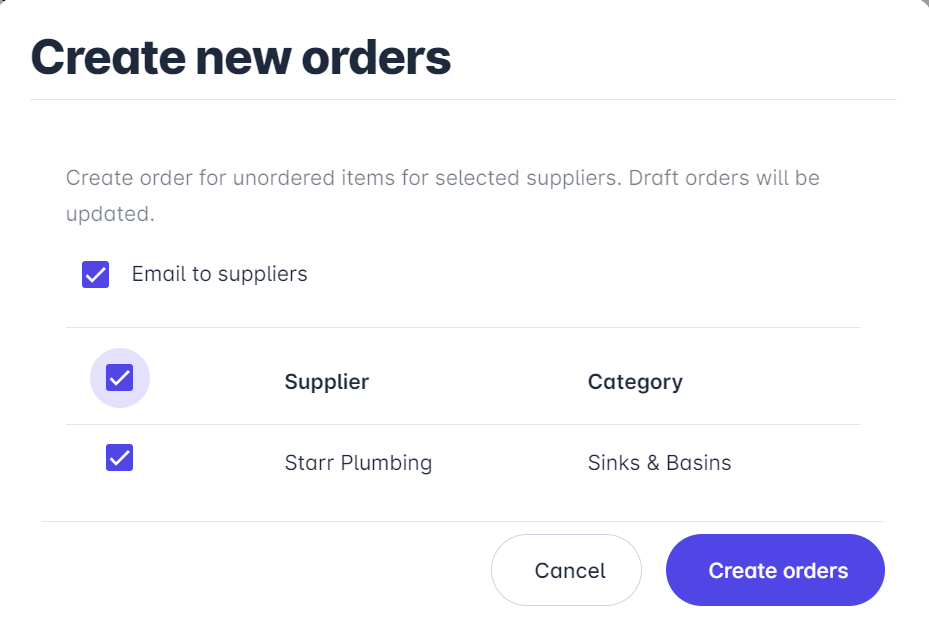
This turns the Order into Draft status. Select Manage.
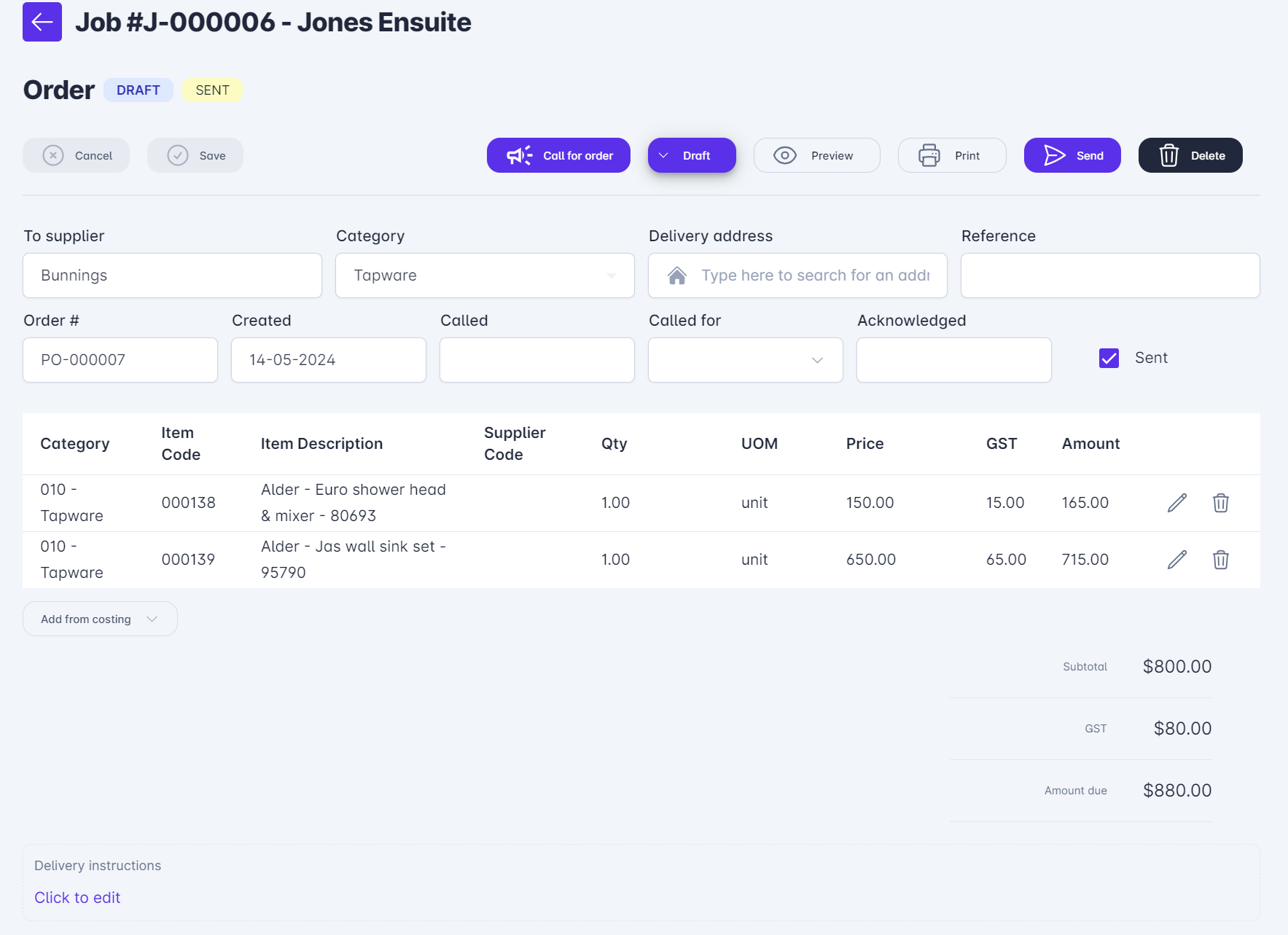
From here, you have the option to Preview or Send the Order to the supplier. Please take note of the Delivery instructions feature located at the bottom of the screen. These instructions will be automatically included in the Purchase Order (PO). You can verify the PO with instructions by using the Preview button.
If you wish to have the orders Called For on a specific future date, you can either input the date in the Called For field before Sending or choose to use the Call for order megaphone icon. Both methods are effective.