Applying Variations
Variations occur when a customer requests a modification to the scope of work, or when a builder or tradesperson encounters challenges during a project that necessitate a change to the contract to ensure successful project completion.
In Eazimate, variations can only be attributed to a Job (not an estimate). It is important to note that a Job is automatically generated once an estimate (quote) has been accepted by a customer and the Accept option has been selected in the workflow for that Job, as shown in the Jobs menu below.

There are a number of reasons why a variation is created. Some of the most common include-
- Variation to Price of Item
- Replacement of item Variation
- Add or Remove an Item
To create a variation start by following these simple steps-
Select Jobs from the main Menu
Select the Job that requires Variation
Select the Quotes and Variations Option
Select + Add Variation Item (top right hand corner)
Name the Variation Description (e.g. Variation1)
The initial variation has been pre-filled with the name 'New Variation Item'. Please Click to Edit in order to modify it to a more descriptive title, such as 'Replace bath tub type' or 'Price Change for tapware'.
-
Variation to Price of Item
The initial item and price will always remain on the original quote, even after creating a variation.
Create a Sundry category in the Items List-
To change an item price for an item in your original quote, select the Sundry category in the Items menu. If this category doesn't exist, select + New Category and create a Sundry category.
Add the price change information as an item in the Sundry Category.
Select + Add Variation Item..
Select Manage Items and choose Sundry from the Categories list. From the Categories List, select your item description.
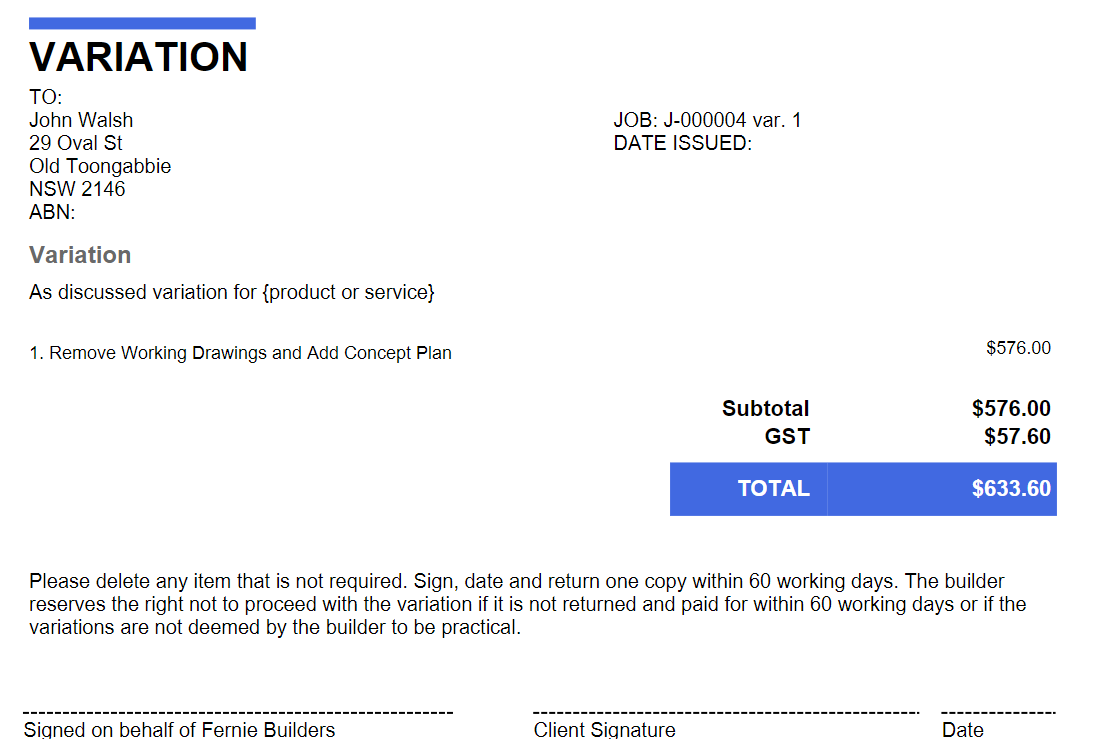
The Variation Letter now shows the adjustment.
-
Replacement Item Variation
Click Manage - Original Quote Items.
Select the item that needs to be replaced and click Manage - Original Quote Item. You will notice that the Item has a negative value. Click Save.
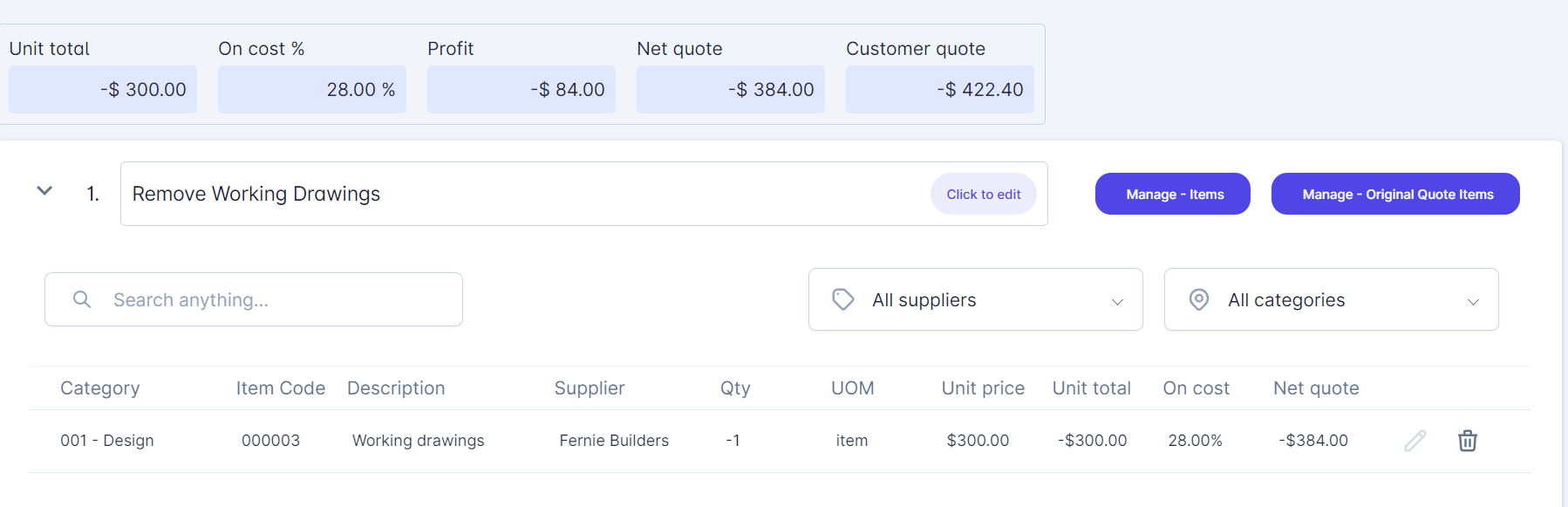
Now select Manage - Items and choose item replacement, then Add the replacement item. Complete the item details including Quantities, UOM, and Price, and click Save when finished.
The variation indicates the difference in price between the original item and the replacement item. The Variation Description field allows for a comprehensive description of the Variation line item. Simply click the click to edit button and provide a detailed description of the Variation. For instance, you can use "Remove working drawings and Add concept plan".
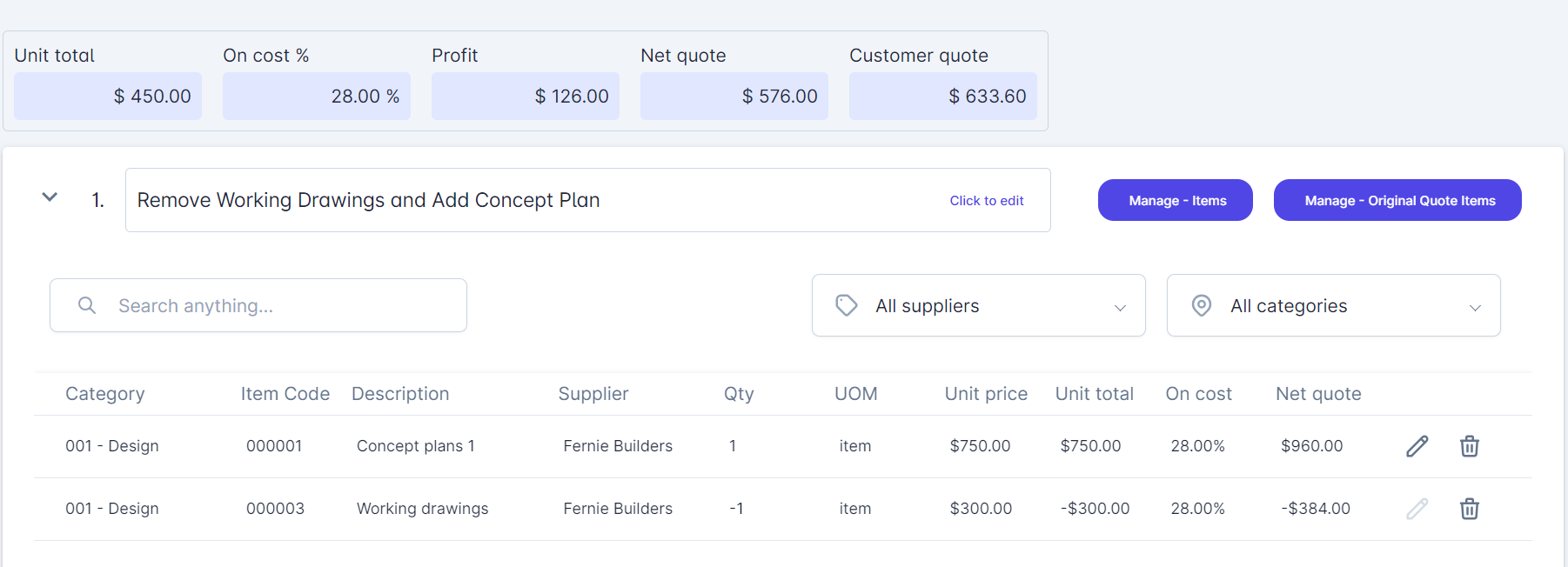
The Variation Letter is automatically updated with the variation price difference..
-
Add or Remove and Item
Select + Add Variation and name the variation. Select manage.
To add an item, please navigate to Manage Items.
Choose the item from the list, then click on Add and proceed to edit the price list item by selecting the edit button. Once done, click on Save. Finally, remember to click Save again to update the Jobs page.
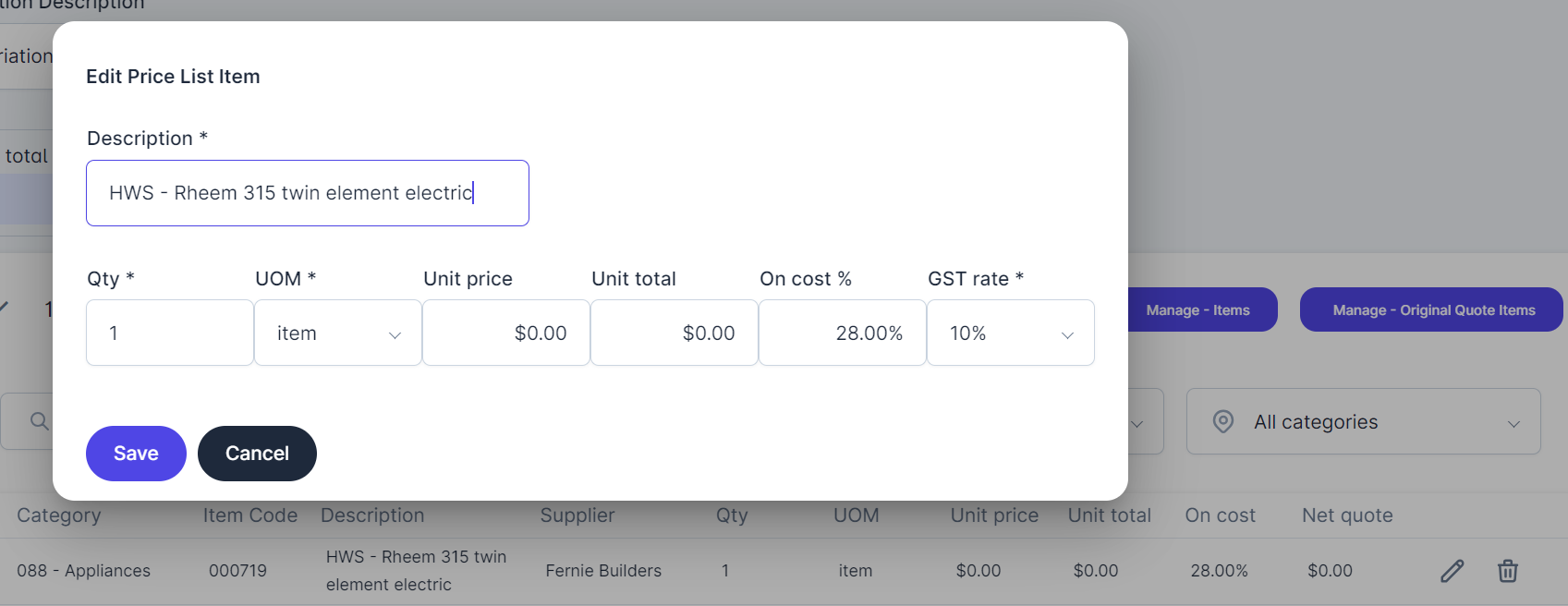
To remove an item from the original quote (reminder - this action does not alter the original quote, but instead generates a variation based on that quote), please select Manage Original Quote Items. Choose the item you wish to remove, then click on Remove from Original Quote.
Save your changes.
Proceed to Click to Edit and enter the necessary adjustment details that you wish the client to review on the Variation Letter. Save your changes once more.
The Variation Letter will be automatically generated. Click on Send after saving to complete the process.
Accumulative Variations
- Select Manage Items and complete your estimate for the variation.
- Select Click to Edit and write your specific item description for the client.
- For further Variations repeat steps 1 and 2.
- Select Variation Letter to view and check your completed variations. You will see on the top right hand side of the letter a variation number is set and all your variations have accumulative numbering as well. The Variation Number on the letter will correspond to the number Quote and Variations page.
Sending the Variation to the Client
You should ensure that the Variation Letter contains all the changes accurately before selecting Send. This inlcudes Variation Details and Terms and Conditions.